
Multi-Cam MAX Installation Guide
Camera Connector Installation
The Camera Connector is a small app that runs in the system tray of your Windows 11 PC. It does the heavy lifting for the system by communicating with your fixed cameras and relaying the video to your iPad. It has no interface to view videos, rather, it provides some configuration settings to manage the camera feeds.
Installation in a few simple steps:
- Contact our team using the form at the bottom of this page to get the download link and enable your existing Onform Coach Account to accept the Multi-Cam MAX trial.
- Download the Onform Camera Connector and follow the installation instructions after double-clicking the .zip file. It will most likely also require that you install the latest .NET runtime from Microsoft, which is a free download that enables key features of the app.
- Download and install the Windows .NET 8 Desktop Runtime after installing the Camera Connector, which should also prompt you to install it.
- Install the relevant supporting software if you have IDS or FLIR cameras.
Upon completion, you will see a dialog to launch the app, note the app lives in the system tray so you won't see it pop up on the screen upon launch.
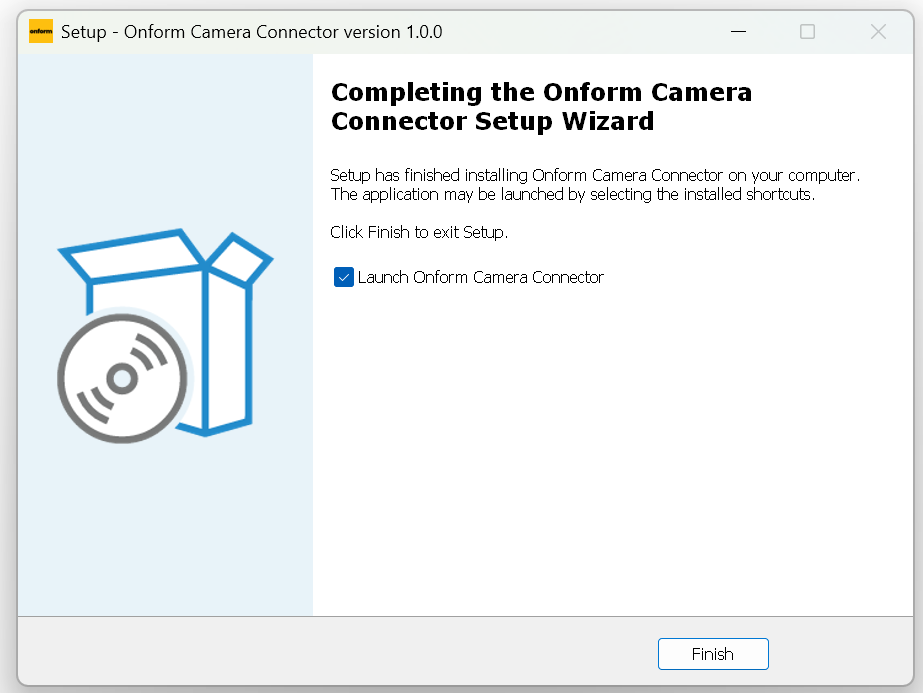
Installation is now complete for the PC. The next steps will use your iPad to configure the system.
When you view the system tray, the app will display a note to use your iPad to configure your cameras:
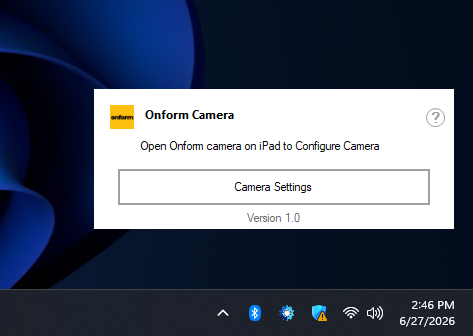
Next, open your Onform app on the iPad and follow the configuration instructions below.
Configuring your fixed cameras using your iPad
To connect with and configure the Camera Connector after installation, open your iPad, navigate to the All Files Library and tap the camera icon to open the Onform camera. Then tap on the 'Multi-cam' button in the top left corner. Note you must use an iPad or Mac, iPhone is not supported when connecting with fixed cameras.
This process will find the Camera Connector running on your PC and link to it. Be sure your PC and iPad are on the same wifi network.
Once completed, you are ready to use your cameras. Also, any other user in your organization will have the ability to connect to the cameras, simply open the camera in Onform, tap 'Multi-Cam' and connect with the fixed camera grouping like "Bay 1" in the above example.
Firewall Settings (optional, if needed)
The Camera Connector needs 3 ports open to function correctly. These firewall settings are automatically created on your PC during the installation process. Or you can manually confirm that Windows Defender Firewall has these rules configured:
- Inbound UDP Port 5353 (Zero config or Apple Bonjour service) which allows the iPad to discover the PC with Camera Connector installed
- Inbound and outbound TCP Ports 49155,49180 which are the ports that Camera Connector uses to send video files to the iPad
The default installation should allow these but if needed, Inbound rules can be created for each of these. Outbound rules are not needed.