
Android Key Concepts and User Guide for Coaches
Key Concepts
Sending Invitations / Sharing videos outside of the app
Sharing Options / Exporting Videos
User Guide
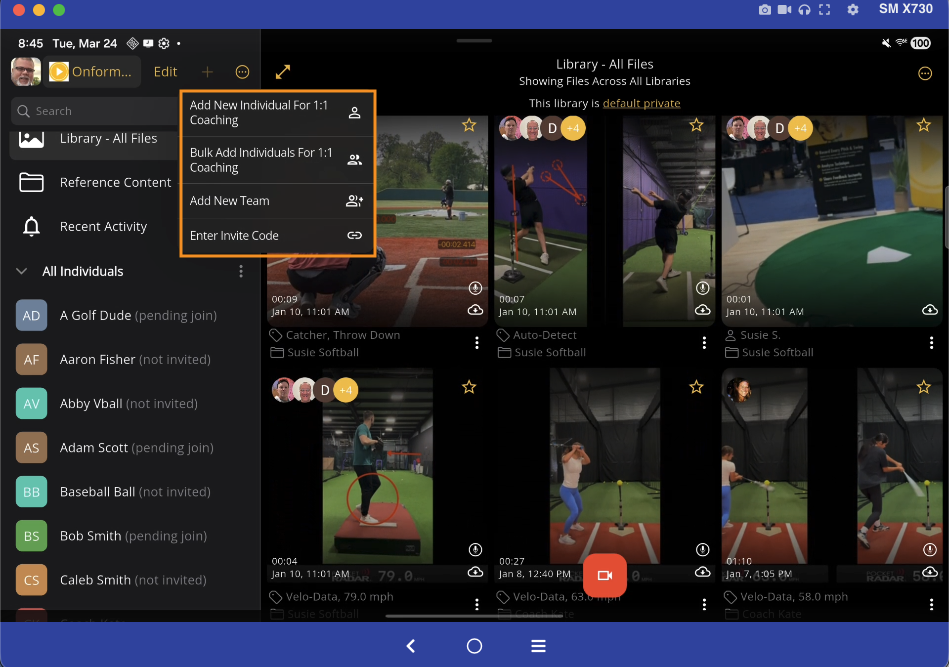
"+" (Add an individual or team workspace, join using invite code)
More: '...'
Individual Workspace "..." (more icon)
Team Workspace "..." (more icon)
Long-pressing an Individual Member’s name in a Team or Individual workspace
App Feature Comparison: Android vs iOS
Key Concepts
Recommended Spec Requirements
Android Recommendations: Coaches and Athletes with limited features
- Android 17.0
Web App: For Coaches & Athletes with limited features
Chrome browser - https://app.getonform.com/ (companion)
Account Creation
Account Creation and Security
Onform supports Single Sign-On (SSO) through Apple, Google, and Microsoft. This seamless integration enhances data privacy and eliminates the need for managing separate credentials.
Privacy Guarantee: We value your privacy; your email address is used solely for authentication and is never sold to third parties.
How Email Communications Work: To prevent spam filters from blocking your messages, all outgoing invitations and external file shares are processed through your device's local email client (e.g., Mail or Outlook). This allows you to maintain control over your outgoing "From" address and ensures high delivery success.
Organization Admin Tool
With the release of version 4.0, Onform has introduced advanced administrative tools designed specifically for multi-coach and multi-location academies, facilities, and large organizations. these features provide a high-level command center for managing staff-to-athlete relationships and data silos across your entire business.
Scalable Infrastructure
- Multi-Organization Setup: Establish separate "Organizations" for each facility or academy under your management. This allows you to silo athletes and coaches, ensuring that data and communication remain within the correct regional or functional branch.
- Staff Administration: Centrally manage your coaching staff, monitor active invites, and view a comprehensive list of athletes connected to each specific coach.
Athlete & Coach Logic
- Centralized Onboarding: Organization administrators have the ability to streamline the onboarding process by instantly connecting athletes with the appropriate coaching staff.
- Instant Staff Assignment: When an administrator adds a new athlete to the organization, they can immediately assign additional staff members to that athlete's workspace.
- No Manual Invitations: There is no need to send separate invitations to your staff; the athlete’s workspace will automatically appear in the designated coaches' accounts.
- Seamless Access: This ensures that your coaching team can begin reviewing footage and providing feedback the moment an athlete is added to the system.
- Dynamic Rostering: Easily add or remove coaches from the organization as your staff changes.
- Bulk Assignments: Use the Bulk Re-assign tool to shift entire groups of athletes from one coach to another—ideal for coaching transitions, end-of-season shifts, or staff departures.
Benefits for Administrators
| Feature | Administrative Value |
| Siloed Locations | Maintains privacy and organization across different physical sites. |
| Coach Visibility | Provides a "bird's eye view" of every coach’s current roster and activity. |
| Rapid Re-assignment | Prevents data loss or communication gaps when a coach leaves the organization. |
Manage Staff
Access the Manage Staff screen by tapping your organization name.

Add Staff
The Add Staff function is the primary tool for building your digital organization. It allows you to register and verify every coach and administrator within your facility or academy.
The Onboarding Process
- Invite Staff: Tapping the "Add Staff" link allows you to enter the details of each staff member. This sends an invitation for them to officially connect with your organization.
- Authentication: Once they accept, they are added to your organization's directory, enabling centralized management and athlete assignment.
Important Note: Inviting a staff member to the organization does not automatically create a workspace for them. It simply registers them as a verified coach within your professional network.
Creating Staff Workspaces
If you need a dedicated space to collaborate with a specific coach (for staff training, performance reviews, or internal communication), you can create one manually:
- Tap the "+" icon on your Home Screen.
- Select Add Individual or Add Team.
- Choose the staff member from your Existing Organization List.
- The workspace will be created instantly, and because they are already part of your organization, it will automatically appear on their device.

Enter the name of your staff person and optionally set them as an Admin of the org, which provides additional permissions for adding and removing people and videos within the org.

Remove and Re-assign
Managing staff departures is a streamlined process in Onform, ensuring that athlete data and communication history are never lost during a coaching change. The Re-assign feature allows for a seamless handoff between an outgoing staff member and their successor.
How to Remove and Re-assign Staff
To remove a coach who has left your organization, follow these steps within the Staff List:
- Access Staff Details: Tap on the name of the departing staff member to open their specific details page.
- Initiate Removal: Tap the More icon (...) in the top right corner and select "Remove from organization and re-assign athletes."
- Select a Successor: You will be prompted to choose a replacement staff member from your existing organization list.
What Happens During Re-assignment?
Once the transition is confirmed, the system automates the following:
- Workspace Integration: The new staff member is automatically added to every workspace (Individual and Team) previously connected to the departing coach.
- Data Continuity: All videos and analysis remain intact within those workspaces, allowing the new coach to review the athlete's progress immediately.
- Silo Maintenance: The departing staff member’s access is revoked across the entire organization, securing your facility's data.
Pro Tip: This "Seamless Transition" model is ideal for academies where multiple coaches may rotate through a single athlete’s development plan or when a head coach needs to take over a departing assistant’s roster.

Library - All Files
The Library - All Files serves as a centralized, comprehensive repository of every video you have recorded, imported, or shared throughout your individual and team workspaces.
- Privacy & Accessibility: This library is strictly private and cannot be shared as a complete directory.
- Key Utility: It is designed for administrative efficiency, allowing you to search, manage, and compare videos across multiple athletes from a single interface.
Reference Content Library
The Reference Content Library is a dedicated space for housing frequently used drills and instructional videos, ensuring they are always available for quick access and sharing.
- Storage Behavior: Unlike other sections of the app, videos in this library are not affected by the Local Cache Setting. They remain on your local device storage until they are manually deleted or the entire app cache is cleared.
- Sharing Protocols: While the library itself is private and cannot be shared as a whole, individual or bulk-selected videos within it can be shared with athletes or teams as needed.
Recent Activity
The Recent Activity feed provides a unified stream of your latest interactions, eliminating the need to navigate between separate workspaces to track updates. When a notification is received, it is automatically archived here for future reference.
Available Updates:
- Messages: View and respond to all recent conversations with individual athletes or teams from one central location.
- Workspace Uploads: Instantly access the newest files added to any of your active workspaces.
- Engagement Tracking: Monitor which videos your athletes have recently viewed and track reactions to your messages.
- Onboarding Alerts: Receive updates when new athletes join your team or workspace.
- Comprehensive Overview: Stay informed on all relevant interactions and system updates without missing critical data.
Collections
Collections are organizational tools that let you customize your workspace view by grouping individuals and teams. This feature provides a tailored dashboard experience, allowing you to quickly navigate to the specific athletes or groups you manage most frequently.
- Customization: Access these settings by tapping the "Edit" link on the Home Screen. From here, you can create, hide, show, or reorder your collections based on your personal preference.
- Management: You can add new individuals or teams, and edit existing collection members, in this menu by tapping the 'more' icon at the end of each Collection name.
All Individuals Collection
The All Individuals Collection serves as the primary directory for all the individual workspaces you have created.
- Organization: Workspaces are automatically listed alphabetically by the athlete's first name.
- Interface Control: For a cleaner Home Screen, this collection can be collapsed or expanded as needed.
- Creation: To add a new individual workspace to this collection, tap the "+" icon located at the top of your Home Screen.
All Teams Collection
The All Teams Collection acts as the central hub for all team-based workspaces within the app.
- Organization: Teams are organized alphabetically by their designated team name.
- Interface Control: Like individual collections, the team view can be collapsed or expanded to save screen space.
- Creation: To establish a new team workspace, tap the "+" icon at the top of your Home Screen.
Workspaces
A Workspace is a dedicated environment designed for collaboration and communication. It functions as a virtual meeting room where athletes, parents, and coaches can interact. Onform provides two distinct workspace types to accommodate different training environments.
Individual Workspace '...' (More Icon)
When an individual workspace is active, tapping the "..." (More Icon) provides administrative tools to manage the athlete’s experience.
| Feature | Description |
| Invite/Reinvite | Resend a workspace invitation to the athlete. |
| Edit Details | Modify member roles or update the workspace name. |
| Library Settings | Toggle the Workspace Library between Default Shared and Default Private. |
| Add New Person | Invite parents or external coaches to the workspace. |
| Add Existing Member | Instantly create an individual workspace for someone already in your organization without requiring a new invite. |
| Leave/Delete | Exit the workspace or permanently remove it from the system. |
Team Workspace "..." (more icon)
-
The Team Workspace includes specialized tools for managing groups of athletes simultaneously. Tapping the "..." (More Icon) within a team view unlocks the following options:
Profile & Settings
- Edit Team Profile: Customize the workspace by setting or changing the background image.
- Update Team Name: Modify the public-facing name of the team.
-
Library Privacy: Adjust the default visibility settings for files uploaded to the team library.
Member Management
- Bulk Invite Athletes: Streamline onboarding by inviting multiple athletes to the team at once.
-
Add Existing Member: Quickly pull athletes from other teams or individual workspaces into this new group. The workspace will automatically appear in their account—no additional invitation is necessary.
Workspace Maintenance
- Leave This Workspace: Remove your own access while keeping the team intact for others.
- Delete This Workspace: Permanently delete the team workspace and all associated data.
Recording a Voiceover
The Voiceover feature allows you to record synchronized audio feedback directly onto a video, creating a powerful instructional tool. This process generates a new, annotated video file while strictly preserving your original footage.
- Initiating a Recording: To begin, open any video and tap the Microphone icon.
- Enhanced Feedback: While recording, you can utilize drawing tools and side-by-side comparisons to highlight specific technical points.
- Non-Destructive Editing: Because a new video is generated for the voiceover, your original "raw" footage remains unaltered and available for future use.
Sharing and Context
When a voiceover is complete, it can be shared immediately within a workspace or to external contacts.
- Contextual Notes: When sharing, you can include a text message. Use this to provide additional context, specific drills to practice, or feedback.
- Feature Consistency: The full suite of annotation and analysis tools is available whether you are performing a voiceover on a single video or conducting a dual-video comparison.
Invitations
Connecting with athletes and staff on Onform is managed through a secure invitation system. Depending on your workflow, you can issue two types of invitations to ensure users are placed in the correct workspace or collection.
Individual Invitations
An Individual Invitation is a secure, single-use method to bring a specific person into a workspace.
- Unique Access: Each invitation generates a unique, one-time-use code. Once a user accepts, the code is invalidated.
- Onboarding Process: Recipients are provided with a direct link to download the Onform app on iOS or Android.
- The Invite Code: To join, the athlete or coach enters a 5-character alphanumeric code (e.g.,
Ab12x).
Important: These codes are case-sensitive. Ensure the recipient enters the letters exactly as shown.
Bulk Invitations
Bulk Invitations are designed for efficiency when onboarding multiple people simultaneously. This method is ideal for team-wide communications, newsletters, or social media distribution.
- Mass Communication: A single link or code allows an unlimited number of individuals to connect with you or join a specific team workspace.
- Automated Organization: You can generate Bulk Invites for specific Collections. When a user joins via this method, they are automatically categorized into that collection on your Home Screen.
- Versatility: Use these for larger groups where individual code management would be impractical.
Acceptance Workflow
Regardless of the invitation type, the process follows a standard security protocol:
- Receipt: The individual receives the link and/or code via your local email client or messaging app.
- Decision: The individual can choose to accept or decline the invitation.
- Integration: Upon acceptance, the member is instantly added to the designated workspace or collection and can begin collaborating.
Sending Invitations / Sharing videos outside of the app
While in-app sharing is the most efficient method for collaboration, Onform provides robust options for sharing videos and links with external recipients.
Delivery Mechanism
Onform does not send emails or videos directly from its own servers. Instead, it integrates with your device’s native email client (e.g., Apple Mail, Outlook, or Gmail).
- Reliability: This integration ensures high delivery rates and prevents messages from being flagged as spam.
- Flexibility: You can configure multiple "From" addresses within your device's email settings. This allows you to send professional communications from a business address, even if it differs from your Onform SSO login ID.
- Requirement: Ensure your device has at least one active email account configured before inviting clients or sharing videos externally.
Sharing & Export Options
Onform offers several ways to move content out of the app. To access these features, navigate to the Share Screen and tap the "..." (More Icon).
| Option | Function |
| Share via Email | Launches your default email app to send a secure link. Recipients can view, download, or save the video to their own Onform account. |
| Copy Link | Generates a direct URL to the video that you can manually paste into text messages, social media, or other platforms. |
| Share to Other Apps | Connects with other installed apps on your device (e.g., WhatsApp, Slack, or Drive). You can customize which apps appear in this menu. |
| Save Video | Downloads the video directly to your device’s Camera Roll/Photos app. |
| Save to File | Exports the video file to your device’s internal file system or cloud storage (e.g., iCloud Drive or OneDrive). |
Key Technical Notes
- Cloud Synchronization: If a video is not currently stored on your local device, it must be downloaded from the Onform Cloud before it can be shared or exported.
- Bulk Actions: You can share, save, or export multiple videos simultaneously to streamline your workflow.
- Security: Sharing a link provides a secure way for non-app users to view your analysis without requiring them to create a full account immediately.
User Guide
Profile (picture or initials)
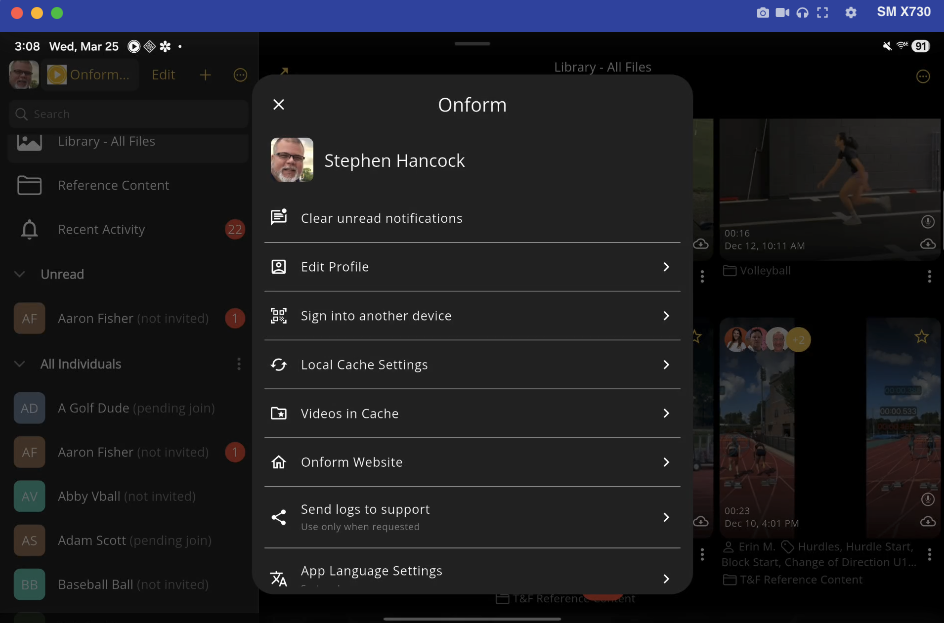
- The Settings menu provides comprehensive control over your profile, data synchronization, and device storage. Configuring these options ensures Onform operates efficiently according to your specific workflow and hardware capacity.
-
Profile & Account Management
- Clear Unread Notifications: Instantly resets the notification indicator for a clean dashboard.
- Edit Profile: Update your core account details, including First Name, Last Name, Sport, Role, and Mobile Number.
- Kiosk Mode: Simplifies high-volume recording environments, such as indoor golf simulators, by allowing quick sign-ins on shared hardware.
-
Logout: Securely sign out of your current session.
Storage & Local Cache Settings
Managing your local storage is critical for maintaining device performance, especially when handling high-definition video files.
- Sync Settings: Toggle the ability to sync files over Cellular Data to manage your data plan usage.
-
Storage Duration: Select the specific number of days videos remain on your local device.
Note: All videos are automatically backed up to the Onform Cloud whenever a data connection is available, ensuring no data loss when local files are rotated out.
- Clear Cache: Manually remove all locally stored video files from your device to free up space.
-
Videos in Cache: View a detailed list of all file types currently stored on your device. From this menu, you can selectively play, share, or download specific files.
System & Support
- App Language: Customize the interface to display in English, Spanish, Korean, or Japanese.
- Send Logs Request: If you encounter a technical issue, use this feature to transmit diagnostic logs to support@onform.com. This should only be performed when requested by a support representative.
- Legal & Resources: Direct links to the Onform Website, Privacy Policy, and Terms of Service.
Organization Access
If you are a member of an Organization, tap the listing at the top left to switch between multiple organizations and/or between your Personal Account and an organization account
Edit
Managing Collections
The Edit menu on your Home Screen allows you to fully customize how your athletes and teams are organized. By using Collections, you can create a streamlined dashboard tailored to your coaching season, specific classes, or skill levels.
Creating and Organizing Collections
- Create New Collection: Establish a new grouping by entering a custom name (e.g., "Varsity 2026" or "Morning Clinic").
- Add Members: Once a Collection is created, you can select specific individuals or teams to populate that group.
- Reorder Collections: Adjust the sequence of your Collections on the Home Screen to ensure your most active groups appear at the top.
- Visibility Control: You can Hide or Unhide entire Collections to keep your Home Screen focused on your current priorities without deleting any data.
Editing Existing Collections
- Collections are dynamic and can be updated as your roster or coaching needs change.
- Move Members: Easily transfer individuals and teams from one Collection to another.
- Add/Remove Members: Update the membership of any Collection by adding new athletes or removing those who are no longer part of that specific group.
- Name Changes: Modify the name of a Collection at any time to reflect its current purpose.
-
Pro Tip: Managing your Collections via the Edit menu does not affect the actual data within the workspaces; it only changes how those workspaces are visually organized on your device.
"+" (Add an individual or team workspace, join using invite code)
A Workspace serves as a centralized environment for high-level collaboration and communication between you and your clients or team members. Functioning like a virtual meeting room, it consolidates all videos, messages, and progress tracking into one secure location.
To accommodate different coaching scenarios, Onform utilizes two distinct workspace structures:
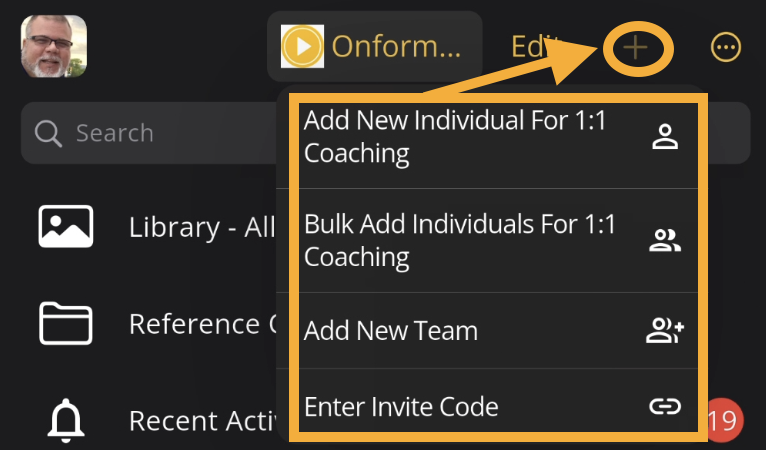
Individual Workspaces
The Individual Workspace is a dedicated environment specifically engineered for one-on-one coaching and personalized development. It serves as the primary hub for high-touch client management.
- Optimized Organization: To ensure data integrity, record client videos directly within their specific workspace library. This automatically tags the athlete and keeps their history organized without manual sorting.
- Expanded Collaboration: While centered on the individual, you can invite additional stakeholders—such as parents or specialized coaches—to the room. All members can view shared content and participate in the communication stream.
- Granular Privacy: Within an individual workspace, you maintain the ability to send private messages to specific members or create subgroups for targeted content sharing.
- Scalability: Use Collections to group these individual workspaces, allowing you to send mass messages or share videos across multiple athletes simultaneously.
Team Workspaces
A Team Workspace is designed to facilitate collaboration among a larger group of members, fostering a sense of community and shared technical progress.
- Flexible Onboarding: Members can be added via unique individual invitations or via a Bulk Invitation link, allowing multiple athletes to join the team quickly.
- Open Communication: By default, all members can view files, participate in group discussions, and share content. This transparency is ideal for team-wide drills, announcements, and culture-building.
- Focused Subgroups: For larger rosters, you can create subgroups to handle specialized units (e.g., "Pitchers" or "Defense") for more focused collaboration within the larger team structure.
- Hybrid Interaction: While the focus is on the group, the platform still allows for one-on-one conversations and private file sharing within the team framework.
Strategic Recommendation: The Hybrid Approach
- For the most effective coaching results, we recommend a "Better Together" strategy:
- Use Team Workspaces for group communication, team drills, and general announcements.
- Use Individual Workspaces for deep-dive, technical analysis, and private skill development.
- Use Collections to bridge the two, keeping your dashboard organized by team or season.
More: '...'
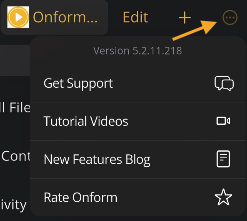
The App Information section ensures you are running the latest version of Onform and provides direct access to educational resources and technical assistance.
| Resource | Description |
| App Version | Displays the current build installed on your device. Keeping this updated ensures access to the latest security patches and features. |
| Get Support | Submit a formal support ticket directly to our technical team for personalized assistance with account or app issues. |
| Tutorial Videos | Access our official YouTube channel for a library of self-paced learning videos covering everything from basic setup to advanced analysis. |
| New Features Blog | Stay informed on the latest platform updates, read expert interviews, and discover deep dives into newly released tools. |
| Rate Onform | Provide feedback and support the community by rating the app on the Apple App Store or Google Play Store. |
Search
The Search tool enables rapid navigation across your entire account, eliminating the need to manually browse individual folders.
- Scope: The function executes a comprehensive search across all Individual, Team, and Custom Collections simultaneously.
- Access: On your Home Screen, simply pull down on the list of workspaces to reveal the search bar at the top of the interface.
Libraries
Onform utilizes three distinct library types to balance global management, instructional resources, and active collaboration.
1. Library - All Files
This is your master repository, containing every video recorded, imported, or shared across all workspaces.
- Privacy: This library is strictly private to your account and cannot be shared as a directory.
- Utility: It is the ideal environment for high-level administrative tasks, such as comparing technical footage of different athletes side-by-side.
2. Reference Content Library
A specialized "vault" for your most frequently used instructional materials, such as drill demonstrations and model swings.
- Storage Performance: Videos here are exempt from Local Cache Settings. They remain on your device's local storage permanently until manually deleted, ensuring instant access even without a data connection.
- Sharing: While the library itself is private, you can share individual or bulk-selected videos with any athlete or team.
3. Individual and Team Libraries
These serve as the primary "staging areas" for active workspaces. Their behavior is determined by your chosen privacy setting:
| Setting | Behavior |
| Default Private | (Recommended) All recorded or added videos remain hidden from other workspace members until you or the athlete explicitly choose to share them. |
| Default Shared | Any video added or recorded in the library is instantly visible to all members of that workspace. |
Recording a Video
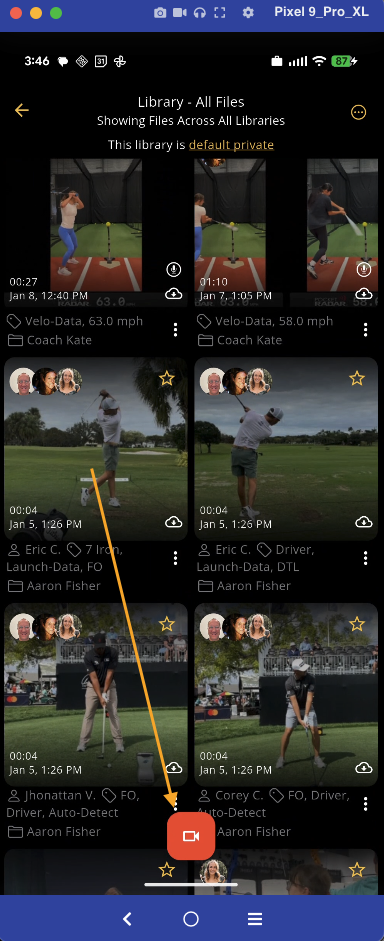
Onform provides the flexibility to choose exactly where a video is saved at the moment of capture. Recording in the athlete's workspace ensures your media is organized and easy to find later on.
1. Recording to 'All Files' Library
When you record directly into the Library - All Files, the video is stored in your master repository.
- Privacy: This is a strictly private recording. No other coaches, athletes, or parents can see this video until you manually move or share it.
- Best For: Personal practice, capturing raw footage for future analysis, or recording content that isn't yet assigned to a specific athlete.
2. Recording to a Workspace
Recording directly within a specific Individual or Team Workspace streamlines your workflow by automating the organization process.
- Auto-Tagging: The video is automatically associated with that workspace’s members, making it easier to find during later reviews.
- Instant Collaboration: Depending on your workspace library settings (Default Private/Default Shared), recording here can make the video immediately available to the athlete or team without extra steps.
- Best For: Active coaching sessions, remote lessons, and team practices where immediate feedback is required.
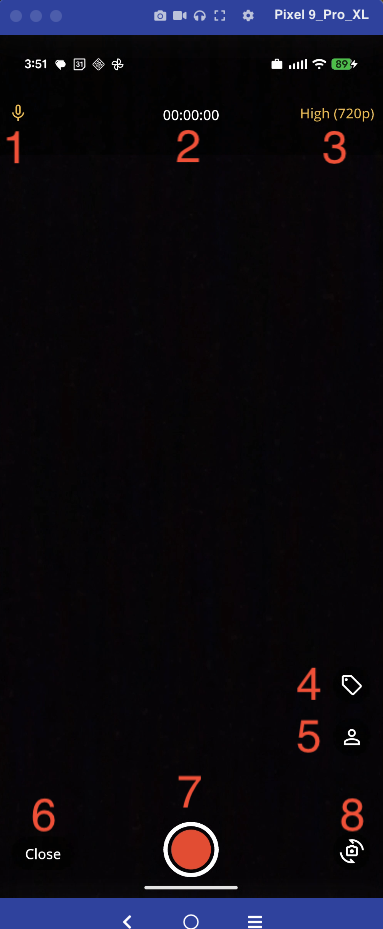
- Microphone mute/unmute sound recording
- Timer: Duration of video recording
- Recording quality options
- Tag recording with custom or pre-made tags
- Tag the Person being recorded
- Close the recording setup screen
- Start recording/Stop Recording
- Switch between recording using the Front/Rear camera
Previewing a Video
Tap on any video thumbnail to open a video
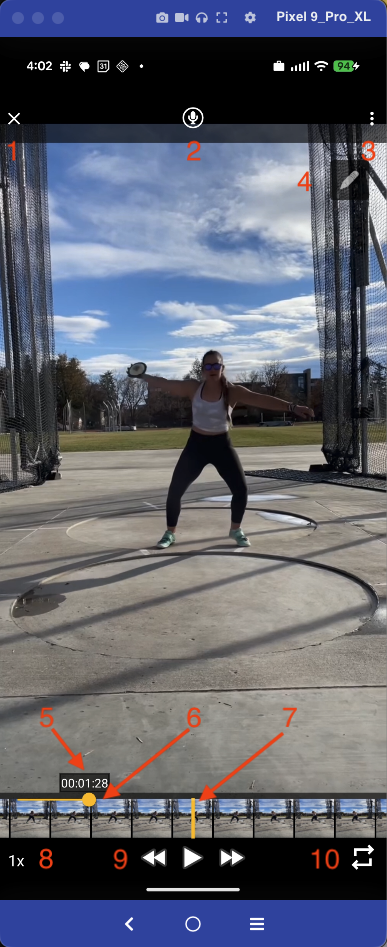
- Close Video Preview: Exit the player and return to the library or workspace.
- Voiceover Activation: Tap the microphone icon to begin recording your annotations and voice. This generates a new feedback video that can be shared immediately.
- Video Management & Sharing: Access the "..." menu to:
- Share the video.
- Add to Starred Videos.
- Edit the Video Title.
- Reassign the Person or edit/create Tags.
- Annotation Tools: Open the drawing suite to add lines, circles, and angles to the video.
- Timestamp: Displays the current position within the video duration.
- Macro-Scrubber: Quickly navigate across large segments of the video.
- Frame Scrubber: High-precision scrubbing for moving through specific sequences.
- Playback Speed: Select your viewing speed, ranging from 2X down to 1/8X slow motion.
- Playback Controls: * Play/Pause: View at the selected speed.
- Frame-by-Frame: Advance or rewind one frame at a time for ultimate precision.
- Loop Playback: Set the video to repeat continuously for repetitive analysis.
2 Panel Video Player
In any Library, tap the More icon (circle and 3 dots) to launch the menu where you can select your 2 videos. Once selected, tap the Compare icon to place the videos into both panels.
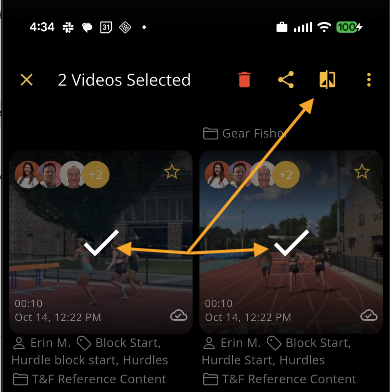
With both panels populated, the options above are applicable in Compare Mode as well, as described above. Ideally, you want to get both videos at the same 'point of reference' and then Link the videos.
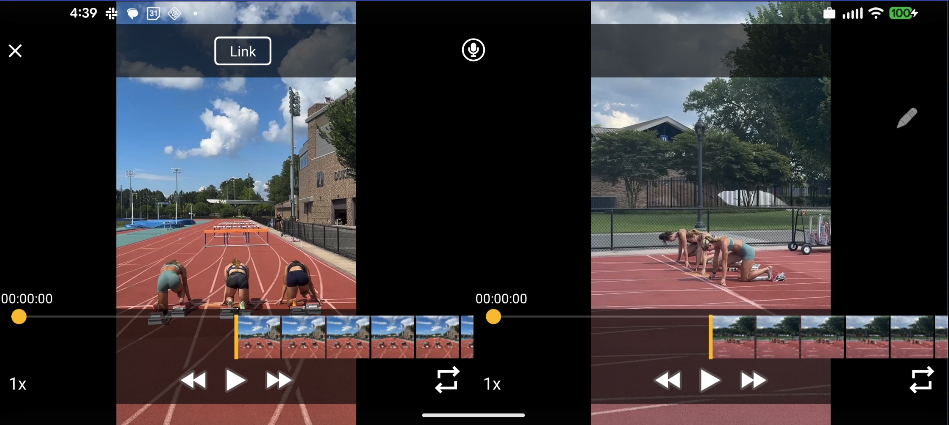
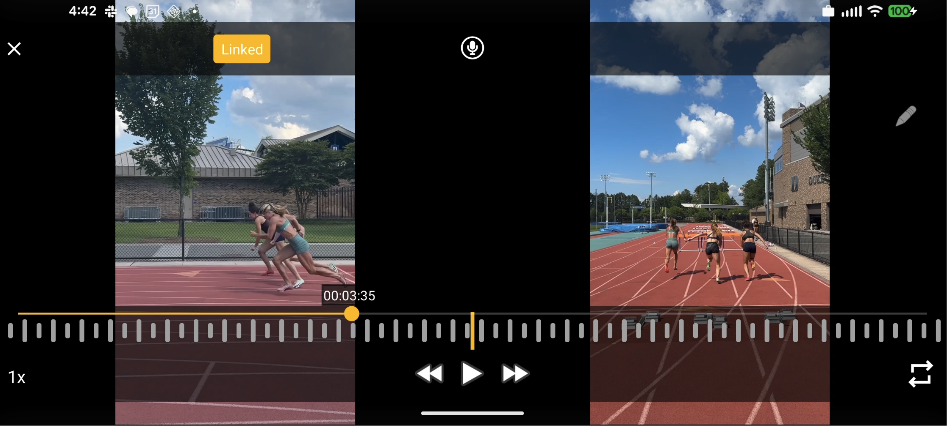
Once the videos are linked, you have a single playback control that advances and rewinds both videos simultaneously.
Recording a Voiceover
The Voiceover feature is a powerful tool for providing clear, synchronized audio and visual feedback. It allows you to transform a standard video into a personalized lesson by recording your voice and on-screen annotations simultaneously.
Creating a Voiceover
- Initiating the Session: Open any video in your library or workspace and tap the Microphone icon to begin recording.
- Instructional Tools: While recording, you can use the built-in drawing tools and side-by-side comparison features to highlight specific technical points in real-time.
- Non-Destructive Editing: When a voiceover is completed, Onform generates a new video file. Your original "raw" footage remains untouched and preserved for future use.
Sharing & Contextual Notes
Once your voiceover is ready, you can share it with athletes, parents, or other coaches.
- Enhanced Communication: When sharing the generated video, you have the option to include a text message. Use this space to provide extra context, specific drills to practice, or detailed notes that complement your audio feedback.
- Seamless Delivery: The recipient will receive the annotated video, allowing them to see your drawings and hear your instructions exactly as you recorded them.
Miscellaneous
Video Thumbnail Icons
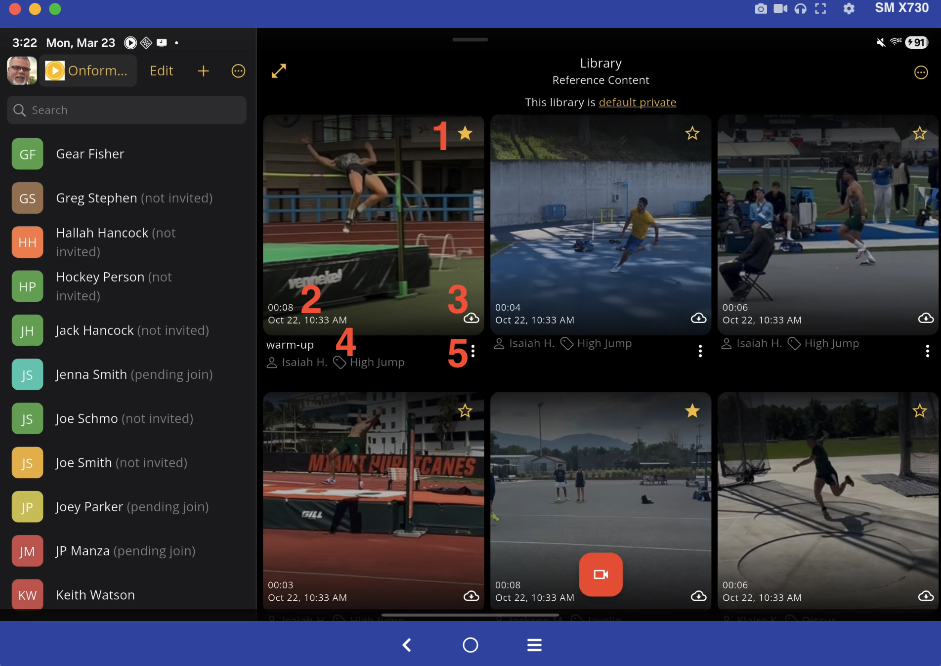
Within the Onform library, each video entry provides detailed status indicators and a suite of management tools. These features ensure your content is correctly labeled, accessible, and synced across devices.
File Status & Identification
- Favorite (Star Icon): Marking a video as a favorite serves two purposes: it flags the video for quick review and overrides the Local Cache Setting, ensuring the video remains on your device's local storage for instant access.
- Metadata: Each entry displays the Video Duration, Timestamp, Title, and any assigned Tags.
- Cloud & Sync Indicators:
- Cloud with Down Arrow: The video is stored only in the Onform Cloud. You must have a stable data connection to download it before viewing or using it in a Compare session.
- Cloud with Checkmark: The video is synced to both the Onform Cloud and your local storage. It is immediately accessible for analysis, even without a connection.
- Title, Workspace library video resides in, and Tags
-
Extended Management Options ("..." Menu)
- Tapping the More icon on a video file opens an administrative menu with the following capabilities:
| Feature | Description |
| Move File | Transfers the video from the current workspace library to another. This is useful if a recording was accidentally started in the wrong athlete's workspace. |
| Copy/Duplicate | Copy File places a version in a different workspace while keeping the original; Duplicate creates a second copy in the current library. |
| Restrict Sharing | Adjusts permissions to limit who can view or share the specific file. |
| Edit Metadata | Manually update the Title, reassign the Person, or manage Tags for better searchability. |
| Delete | Permanently removes the video from the library and cloud. |
-
External Sharing & Exporting
- Copy Link: Generates a secure URL you can paste into an email or SMS for quick viewing outside the app.
- Share via Email: Launches your device's native email client to send a direct link to the video.
- Share to Other Apps: Export the video directly to third-party platforms or save it to your device's Camera Roll.
- Save to Downloads Folder: Moves a copy of the video file into your device's local file system.
Individual Workspace '...' (More Icon)
When an individual workspace is active, tapping the "..." (More Icon) opens a management menu that allows you to control access, privacy, and organization for that specific athlete.
Workspace Access & Identity
- Invite / Reinvite: Send or resend the initial workspace invitation to the athlete.
- Edit Workspace Details: Modify the core attributes of the space, such as the Workspace Name or changing a member's Role (e.g., from Athlete to Coach).
- Update: Save any changes made to the workspace settings.
Adding Members
- Add New Person: This is the primary method for adding stakeholders who are not yet part of your organization, such as Parents or External Coaches.
-
Add Existing Member: If an athlete is already part of your broader Organization (e.g., they are in a Team Workspace), use this to create their Individual Workspace.
Note: These members do not need to accept an invitation; the new workspace will automatically appear in their account upon creation.
Library Privacy Settings
- Default Shared vs. Default Private: Toggle the primary behavior of the workspace library.
- Private: Videos are hidden until manually shared.
- Shared: Videos are instantly visible to all members.
Maintenance & Exit
- Leave This Workspace: Remove your own access while leaving the data intact for other members.
- Delete This Workspace: Permanently remove the workspace and all associated files from the platform.
Team Workspace "..." (more icon)
When a Team Workspace is active, tapping the "..." (More Icon) opens a management menu tailored for group administration. These tools allow you to customize the team identity, manage large rosters, and control privacy settings.
-
Profile & Branding
- Edit Team Profile: Personalize the workspace by setting or changing the background image. This helps distinguish between different teams at a glance.
- Edit Team Name: Modify the public-facing name of the team as it appears on the Home Screen.
-
Update: Save and apply any changes made to the team profile or settings.
Member Management & Onboarding
- Bulk Invite Athletes: Streamline the onboarding process by inviting multiple athletes to the team simultaneously using a single link or code.
-
Add Existing Member: If an athlete is already part of your Organization (e.g., they have an existing Individual Workspace or are in another team), use this feature to pull them into the new team instantly.
Note: These members do not need to accept a new invitation; the Team Workspace will automatically appear in their account upon creation.
Library Privacy Settings
- Default Shared vs. Default Private: Define the default visibility for all videos added to the team library.
- Private: Footage remains hidden from the group until explicitly shared by a coach or the uploader.
-
Shared: Promotes an open learning environment where any video added is instantly visible to all team members.
Maintenance & Exit
- Leave This Workspace: Remove your own access to the team while leaving the workspace active for other coaches and athletes.
- Delete This Workspace: Permanently remove the entire team workspace and all associated data from the platform.
Long-pressing an Individual Member’s name in a Team or Individual workspace
The invitation process is designed to be secure and efficient, ensuring that only authorized individuals gain access to your workspaces. Depending on the status of your request, you will see different options within the workspace management menu.
- Invite a New Member: Use this function to send an initial invitation to a coach, athlete, or parent who has not yet been added to the workspace.
- Re-Invite Existing Invitee: If a recipient has not yet accepted their initial request, the Re-Invite option will appear. This allows you to resend the invitation link or code to ensure it hasn't been missed or expired.
-
Single Acceptance Policy: Once an individual has successfully accepted an invitation and joined the workspace, they are fully integrated into the system.
Note: A user cannot accept a second invitation to a workspace they are already a member of. If they lose access, they simply need to log back into their Onform account using their original SSO method.
Recently Deleted
To prevent the accidental loss of important analysis, Onform utilizes a two-stage deletion process. When a file is removed from a library, it is not immediately erased; instead, it is moved to a protected staging area.
Managing Deleted Content
You can access your deleted files from any Library by tapping the More (...) icon and selecting the Recently Deleted Folder. Within this menu, you have two primary options:
- Recover Files: Restore videos that were mistakenly deleted. Once recovered, the files return to their original workspace or library with all metadata and annotations intact.
- Permanent Deletion: Manually empty the folder to permanently erase files from the platform. This action is irreversible and is the primary method for freeing up local storage on your device.
Note: Files stored in the Recently Deleted folder still occupy space on your device's local cache until they are permanently removed.
Web App
- https://app.getonform.com/
-
While Onform is primarily a mobile-first platform, a Web Companion is available for users who need to access their data through a desktop or laptop web browser. This version is designed to complement the mobile experience rather than replace it.
Browser Recommendations
For the most stable performance and accurate visual rendering, it is strongly recommended that you use the Google Chrome browser. While other browsers may function, Chrome is the primary supported environment for the web interface.
Functional Capabilities
The Web Companion provides essential tools for reviewing data and communicating with your network:
- Media Management: You can import new videos directly from your computer, export files for external use, and view your entire library.
- Feedback Tools: The web interface supports limited voiceover recording, allowing for basic technical commentary from a desktop setup.
- Communication: Full access to the chat system enables you to send and receive messages within your workspaces, ensuring you stay connected even when away from your mobile device.
-
App Feature Comparison: iOS v Android
Comparison of Available Functionality: Onform iOS and Android Apps
This document provides a side-by-side comparison of the core features and functionality currently available to Coaches and Individuals in the Onform mobile application on both Apple iOS and Google Android.
Coach Feature Comparison
|
|
IOS |
Android |
|---|---|---|
| Video Recordings |
✔️ |
✔️ |
| Recording Options |
Device and Camera Specific 720p to 1080p - 30 fps to 240 fps |
Device and Camera Specific 720P, 30 fps - 720P, 120 fps - 1080p, 30fps - 1080p, 240fps |
| Recording Modes |
Manual, One-Tap, Auto-Detect, Launch Monitor, Auxiliary Cam |
Manual |
| Loop Video Playback |
✔️ |
✔️ |
| Playback Speed Controls |
2X -1/8X |
2X -1/8X |
| Custom Video Tags |
✔️ |
✔️ |
| Library Search |
✔️ |
✖️ |
| Recent Activity |
✔️ |
✔️ |
| Reference Content |
✔️ |
✔️ |
| Voiceover Recordings |
✔️ |
✔️ |
| Compare Videos |
✔️ |
✔️ |
| Private and Group Chats |
✔️ |
✔️ |
| Team Workspaces |
✔️ |
✔️ |
| Individual Workspaces |
✔️ |
✔️ |
| Collections |
Create and Share |
Create |
| Organizations |
✔️ |
Access but can’t create |
| Manage Staff |
✔️ |
✖️ |
| Shared Collections |
✔️ |
✔️ |
| Pinned Messages |
✔️ |
✖️ |
| 2D Skeleton Tracking |
✔️ |
✖️ |
| FullSwing KIT/Garmin R10 Compatible |
✔️ |
✖️ |
| Sensor Edge Compatible |
✔️ |
✖️ |
| Pocket Radar Integration |
✔️ |
✖️ |
| Stalker Sport Radar |
✔️ |
✖️ |
| Auto-Detect Recording For Golf, Baseball, Softball |
✔️ |
✖️ |
| External UVC Camera Support |
✔️ |
✖️ |
| Golf Club Tracking |
✔️ |
✖️ |
| 3D Visuals and Data For Golf |
✔️ |
✖️ |
| Multi-Cam Video Recordings |
✔️ |
✖️ |
| Drawing in Live Camera View |
✔️ |
✖️ |
| Voiceover Drawing Tools |
11 Tools - Thickness and custom Color options |
4 Tools and 5 color options |
| Bulk Invite Athletes |
✔️ |
✔️ |
| Coach Cam |
✔️ |
✖️ |
| Scheduled Messages |
✔️ |
✖️ |
| Control iPad |
✔️ |
✖️ |
| 60 min Recording |
✔️ |
✖️ |
| Video Admin Portal |
✔️ |
✔️ |
| Language Options |
✖️ |
English, Spanish, Korean, Japanese |
| Settings |
Full Suite |
Limited |
|
|
|
|
Individual Feature Comparison
|
|
IOS |
Android |
| Video Recordings |
✔️ |
✔️ |
| Recording Options |
Device Camera Specific 720p to 1080p - 30 fps to 240 fps |
Device Specific 720P, 30 fps - 720P, 120 fps - 1080p, 30fps - 1080p, 240fp |
| Recording Modes |
Manual, One-Tap, Auto-Detect, Launch Monitor, Auxiliary Cam |
Manual |
| Loop Video Playback |
✔️ |
✔️ |
| Playback Speed Controls |
2X -1/8X |
2X -1/8X |
| Custom Video Tags |
✔️ |
✔️ |
| Library Search |
✔️ |
✖️ |
| Recent Activity |
✔️ |
✔️ |
| Reference Content | Golf, Track & Field | Golf, Track & Field |
| Voiceover Recordings |
Standard - 5/mo Premium - 20/mo Unlimited when attached to a subscribed coach |
Standard - 5/mo Premium - 20/mo Unlimited when attached to a subscribed coach |
| Compare Videos |
✔️ |
✔️ |
| Private and Group Chats |
✔️ |
✔️ |
| 2D Skeleton Tracking |
✔️ |
✖️ |
| FullSwing KIT/Garmin R10 Compatible |
✔️ |
✖️ |
| Sensor Edge Compatiable |
✔️ |
✖️ |
| Pocket Radar Integration |
✔️ |
✖️ |
| Stalker Sport Radar |
✔️ |
✖️ |
| Auto-Detect Recording For Golf, Baseball, Softball |
✔️ |
✖️ |
| External UVC Camera Support |
✔️ |
✖️ |
| Golf Club Tracking |
✔️ |
✖️ |
| 3D Visuals and Data For Golf |
✔️ |
✖️ |
| Multi-Cam Video Recordings |
✔️ |
✖️ |
| Drawing in Live Camera View |
✔️ |
✖️ |
| Voiceover Drawing Tools |
11 Tools - Thickness and custom Color options |
4 Tools and 5 color options |
| Control iPad |
✔️ |
✖️ |
| 60 min Recording |
✔️ |
✖️ |
| Standard & Pinned Messages |
✔️ |
✖️ |
| Language Options |
✖️ |
English, Spanish, Korean, Japanese |
| Settings |
Extensive |
Limited |